
Step-by-step guide · By the Closed on Sunday team ·
How to Make a Closed on Sunday AI Video from a Photo
You can make a choir video from one photo without assembling a group image or writing a scene prompt. The studio handles the surrounding cast and generated audio. Here is the full workflow, including what to review before using credits and where to find your finished video.
1. Prepare one clear subject photo
Use a JPG, PNG, or WebP image up to 10 MB. Start with one clearly visible person or pet facing the camera. Soft, even lighting helps keep facial features visible. Avoid screenshots with interface buttons, heavy beauty filters, or a subject so far away that the face occupies only a tiny part of the image.
Open the file before uploading and look at it at normal viewing size. Can you recognize the face without zooming in? Are the eyes and outline unobstructed? If several people appear, choose another photo or crop your source image so there is one obvious subject. Use a photo you have permission to upload.
2. Upload the photo and choose your choir
Open the homepage studio and click the photo upload area, or drag your image onto it. Review the selected image before continuing. If you picked the wrong file, remove it and choose the intended photo before starting generation.
Select a cast from the choir library. The uploaded image supplies the central subject; the selected preset supplies the surrounding singers. You do not need a separate group photo. Compare the visible preset tiles and choose the mood you want, such as the original choir, cats, dogs, or robots.
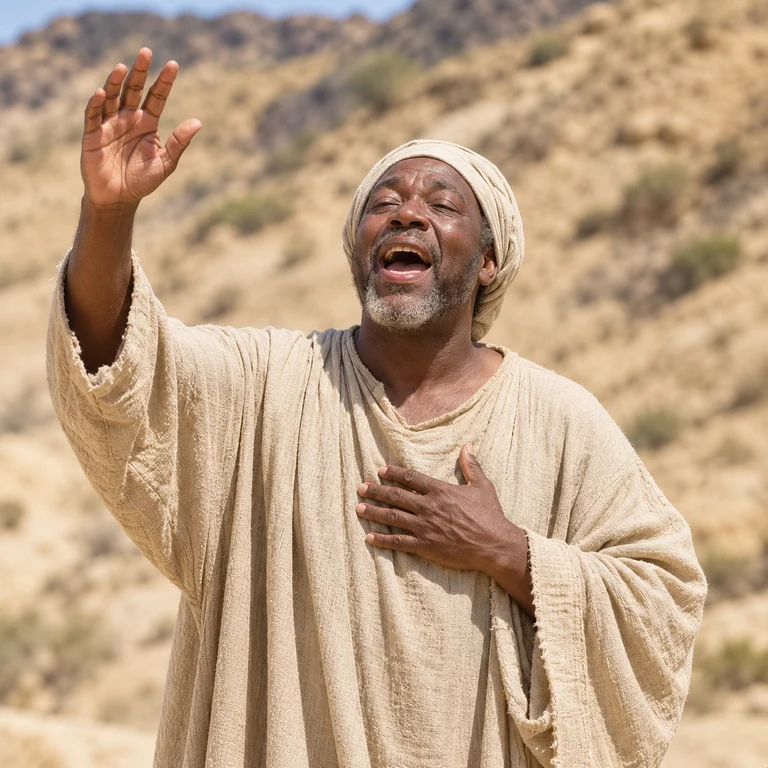 The original
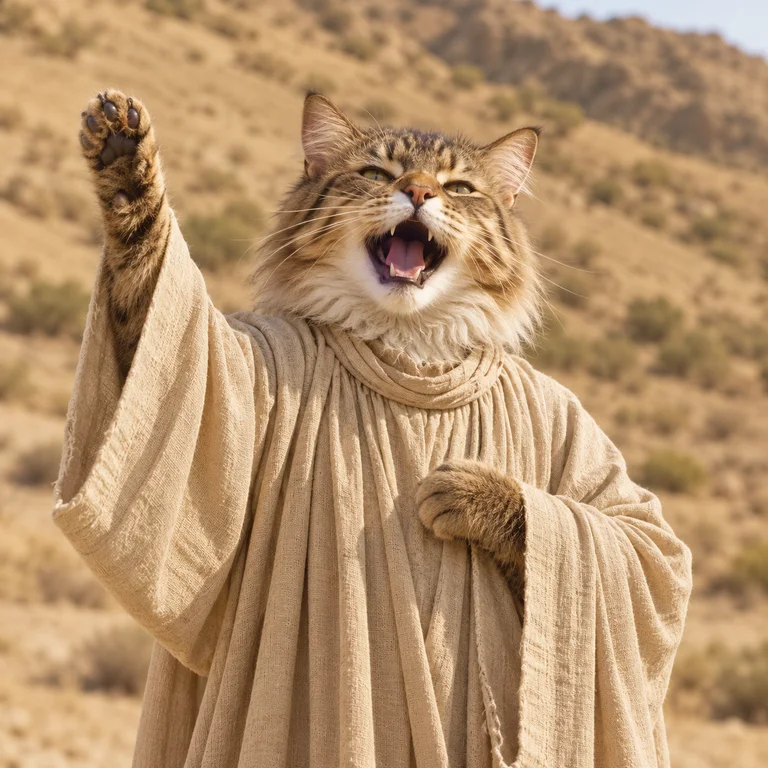 Cat choir
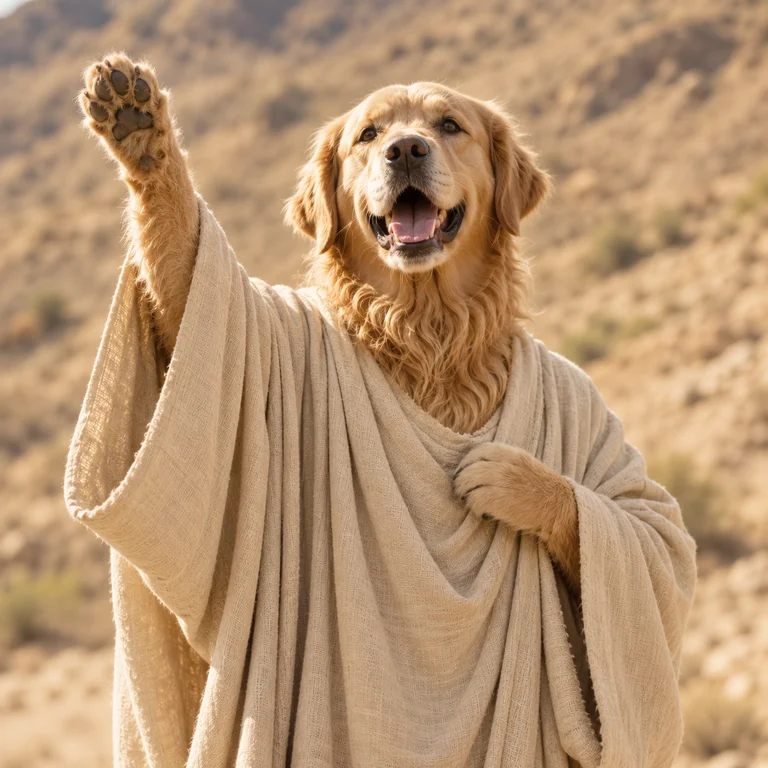 Dog choir
3. Sign in and check the current credit cost
Sign in with Google and add a credit pack if needed. Packs are one-time purchases rather than subscriptions. The studio displays the current number of credits needed for a video, and the pricing page explains the available packs. Check that rate before choosing how many generations to fund.
Read the final payment amount at checkout, including any applicable taxes. Once payment is confirmed, the purchased credits are added to your balance. Do not assume that seeing the checkout screen means the purchase has completed; return to the studio and check your balance before generating.
Choose your portrait and the cat choir before checkout. Check the studio’s current cost and fund enough credits for the attempt. Once it starts, follow that task in My videos before submitting another generation.
4. Generate and follow the task
Confirm that you have permission to use the photo, then start generation. The result is intended to keep the central subject still while the choir performs around them. New audio is generated with the scene. There is no soundtrack selector or editing timeline in this workflow.
You can follow progress in My videos and return there after leaving the homepage. If a task is still processing, check its status before starting another paid attempt. Credits reserved for a confirmed failed generation are returned; an uncertain provider outcome may remain under review.
5. Preview and download your MP4
When the task completes, play the full result with sound. Check the face, the visibility of the surrounding cast, and any unexpected visual changes. Then download the 15-second HD MP4. The output uses a landscape 16:9 frame, so review it before reframing for a vertical feed.
If you need captions, cuts, or a different layout, use the downloaded file in your preferred editor. Keep an original copy so you can return to the full frame later. The studio generates the scene; it does not provide frame-by-frame corrections or guarantee that every facial detail will match the source.