
Photo preparation · By the Closed on Sunday team ·
How to Choose a Photo for Your AI Choir Video
A useful source photo gives the choir generator a clear reference for the person or pet in the middle. You do not need a studio portrait. You need an image where the subject is easy to identify. Use these checks to choose between photos before paying for a generation.
Make one subject the obvious focus
Choose a picture with one clearly visible face. Group photos create ambiguity about who belongs in the centre of the scene. A distant full-body shot may contain plenty of pixels overall while providing very little facial detail. A closer portrait usually makes it easier to judge whether the reference is usable.
If you crop a source image, preserve the whole face and enough of the head outline to recognize the subject. Do not crop through the forehead or chin just to make the face larger. Cropping can remove distractions, but it cannot recover detail that was never present in a small or blurry original.
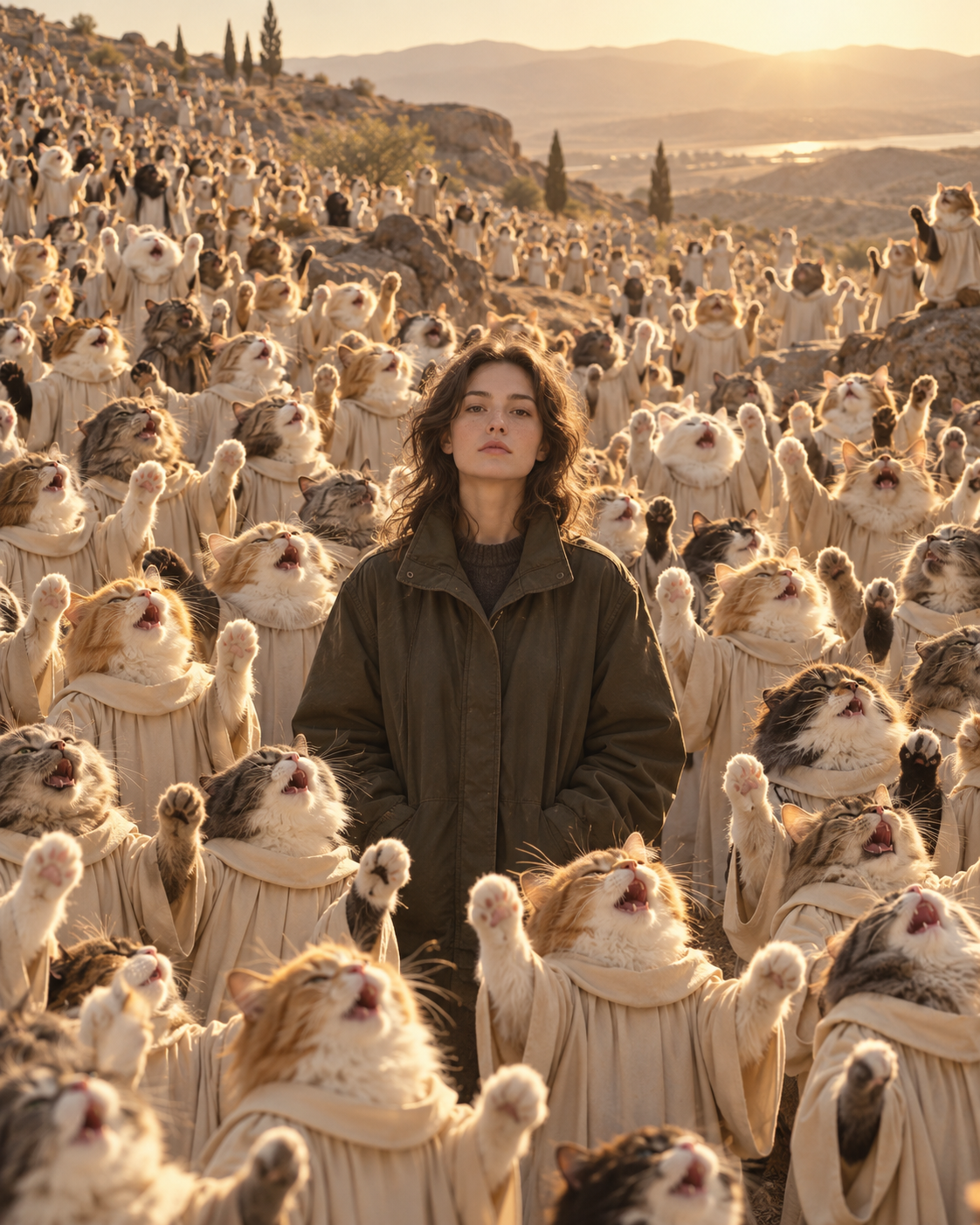
Look for even light and visible features
A face lit from the front or gently from one side is easier to read than a silhouette against a bright window. Check both sides of the face, the eyes, and the outline of the mouth. Heavy shadows, motion blur, and bright glare can hide the very details you want the video to retain.
Avoid strong filters that redraw features or smooth away the face. Hats, hands, sunglasses, and objects in front of the face can also obscure the reference. If choosing between a dramatic photo and a simple daylight portrait, start by comparing how clearly each one shows the subject.
Photo A: a sharp portrait by a window, facing the camera, with both eyes visible. Photo B: a dark group selfie with a hand across the face. Start with Photo A: it gives the generator one clear identity reference. Cropping Photo B will remove other people, but will not recover the hidden features.
Match the expression to the scene
The choir format is built around a calm subject surrounded by performers. A neutral, front-facing expression can support that idea. An extreme angle or a wide-open mouth may be less suited to a scene intended to show a still, quiet person in the middle.
This is a preparation guideline, not a guarantee of the output. The generator creates a new scene, and facial identity, expression, and movement may vary. Choose an image you would be comfortable using as a reference rather than expecting the original photograph to remain unchanged inside the video.
For pets, get close enough to see the face
Use a clear photo of your own cat, dog, or other pet with the eyes and face outline visible. A pet curled into a ball or turned away from the camera gives less information about its appearance. If the coat blends into the background, choose a photo with better separation.
You can choose an animal choir independently of the pet in the middle. There is no need to photograph several animals together. A single clear pet portrait is the source image; the choir preset creates the surrounding cast.
Check the file before uploading
The studio accepts JPG, PNG, and WebP files up to 10 MB. If your phone photo uses another format, export a supported copy before uploading. Renaming a file extension alone does not convert the image. Keep the original so you can try a different crop without repeatedly compressing it.
Before generating, check the selected image in the studio, compare your choir choice, and read the current credit cost. If uploading fails, verify the format and file size first. If a generated result changes facial details, consider a clearer source photo, while remembering that another paid generation can still vary.